Strata Cloud Manager Terraform Provider Troubleshooting Guide
Introduction
The Strata Cloud Manager Terraform Provider accelerates network security operations through unified management, scales complex environments with confidence and ease, and streamlines workflows through automation.
However, when an issue arises, it can be frustrating. This guide covers the most common Strata Cloud Manager Terraform errors—from API rate limiting to state mismatches—and how to fix them.
Authentication Errors
Problem

Terraform fails immediately with an "Invalid client – Client Authentication Failed" error. This error occurs before any resource is created or modified, indicating that the provider can't establish an authenticated session with the Strata Cloud Manager API.
Common Causes
- Incorrect or Missing Credentials: The Client ID, Client Secret, or Tenant Service Group (TSG) ID is incorrect or missing in your provider configuration.
- Service Account Deleted: Your service account has been deleted.
Step-by-Step Resolution
- Curl Test: Ensure your Client ID, Client Secret, and TSG ID are correct by testing your credentials independently before running Terraform. This helps isolate whether the issue lies with the credentials themselves or with how they're being passed to the provider. Run the following curl command and inspect the response:
curl -X POST \
  "https://auth.apps.paloaltonetworks.com/am/oauth2/access_token" \
  -H "Content-Type: application/x-www-form-urlencoded" \
  -d "grant_type=client_credentials" \
  -d "client_id=<YOUR_CLIENT_ID>" \
  -d "client_secret=<YOUR_CLIENT_SECRET>" \
  -d "scope=tsg_id:<YOUR_TSG_ID>"
A successful response looks like:
{"access_token":"eyJ...","token_type":"Bearer","expires_in":899}
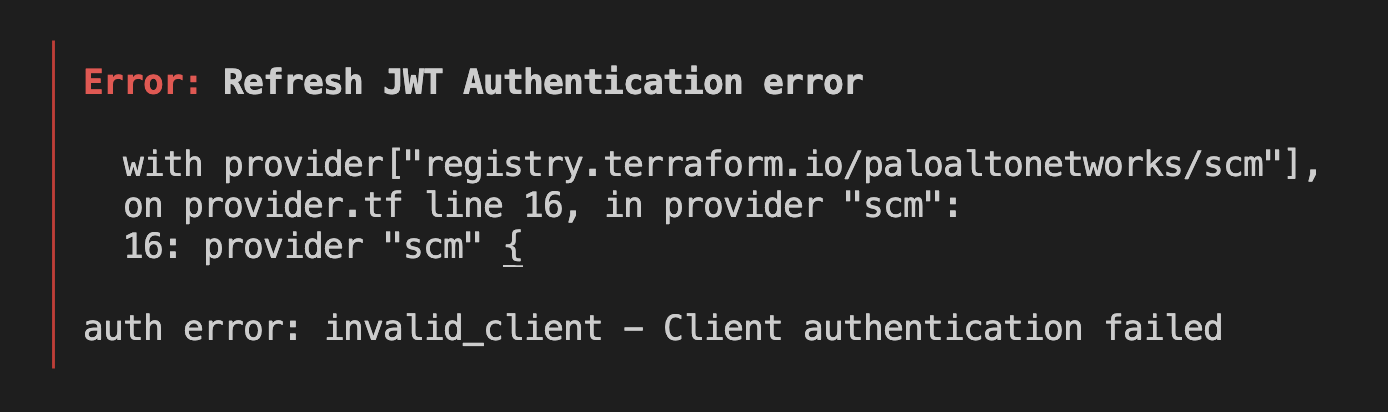
A failed response looks like:
{"error_description":"Client authentication failed","error":"invalid_client"}
If the curl request fails, it indicates an issue with the credentials—continue to Step 2. If the request succeeds but Terraform still fails, the issue is likely in how the credentials are being passed to the provider—skip ahead to Step 4.
-
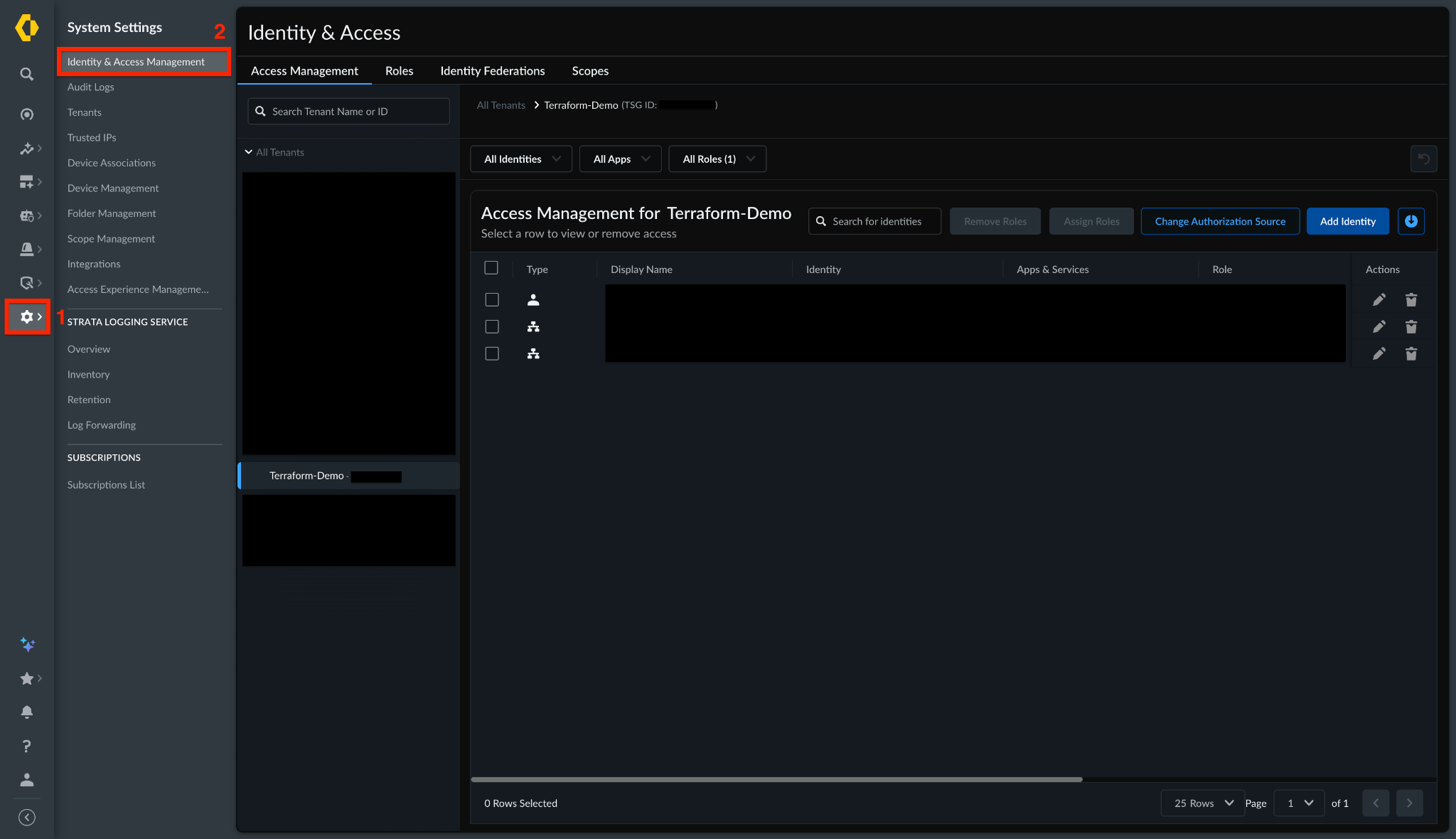
Check Service Account Status: Verify the service account status in Strata Cloud Manager.
a. Select Settings > Identity & Access > Service Accounts in Strata Cloud Manager.
b. Locate the service account associated with your Client ID. If it appears in the list, it's still active. If it isn't listed, it has been deleted and you need to create a new one. Follow the steps on pan.dev to set up a new service account.
-
Regenerate Credentials: Regenerate your credentials. Regenerating a client secret invalidates the existing one for every system that uses it, so coordinate with your team before proceeding:
a. Select Settings > Identity & Access > Service Accounts in Strata Cloud Manager.
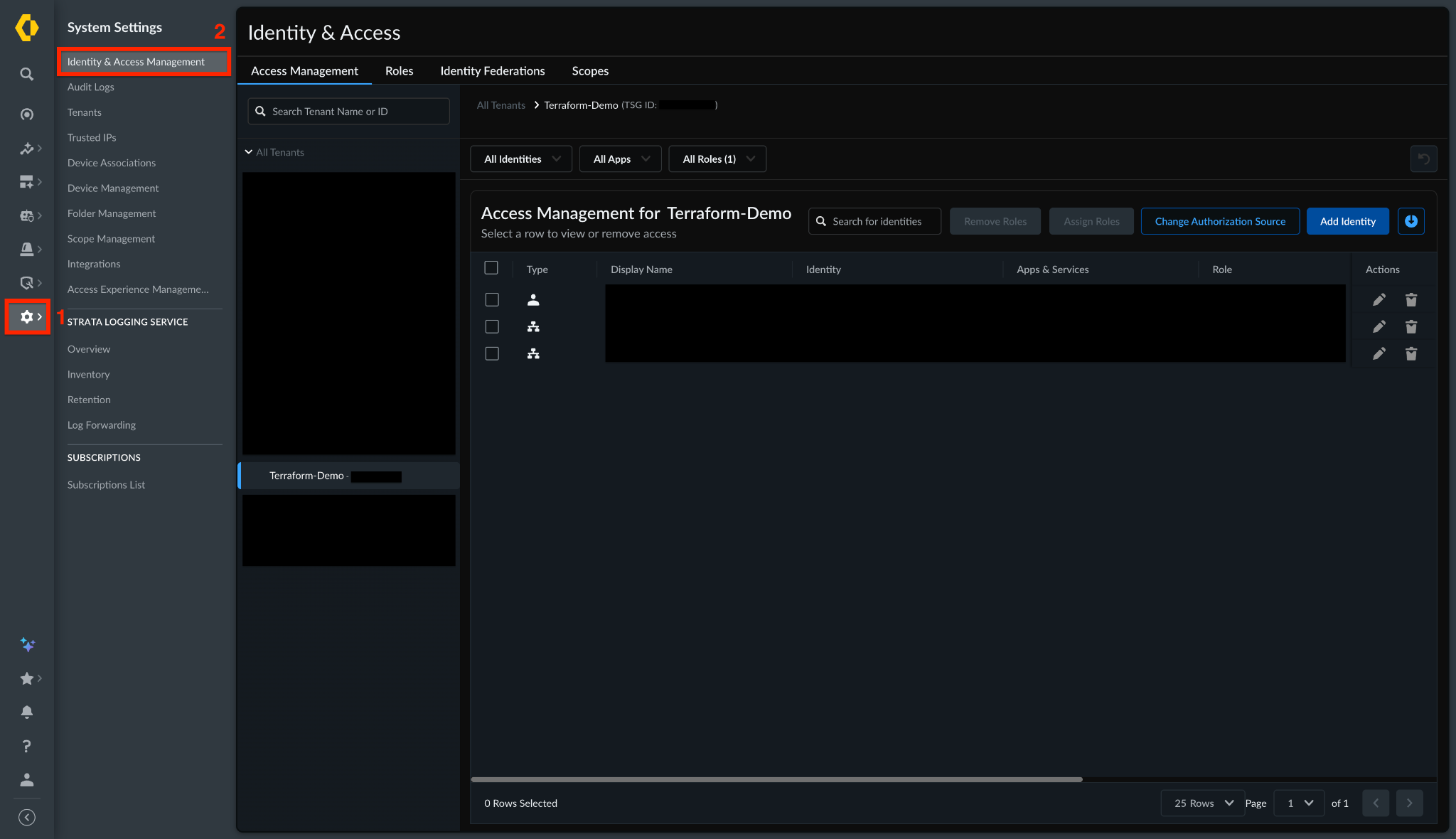
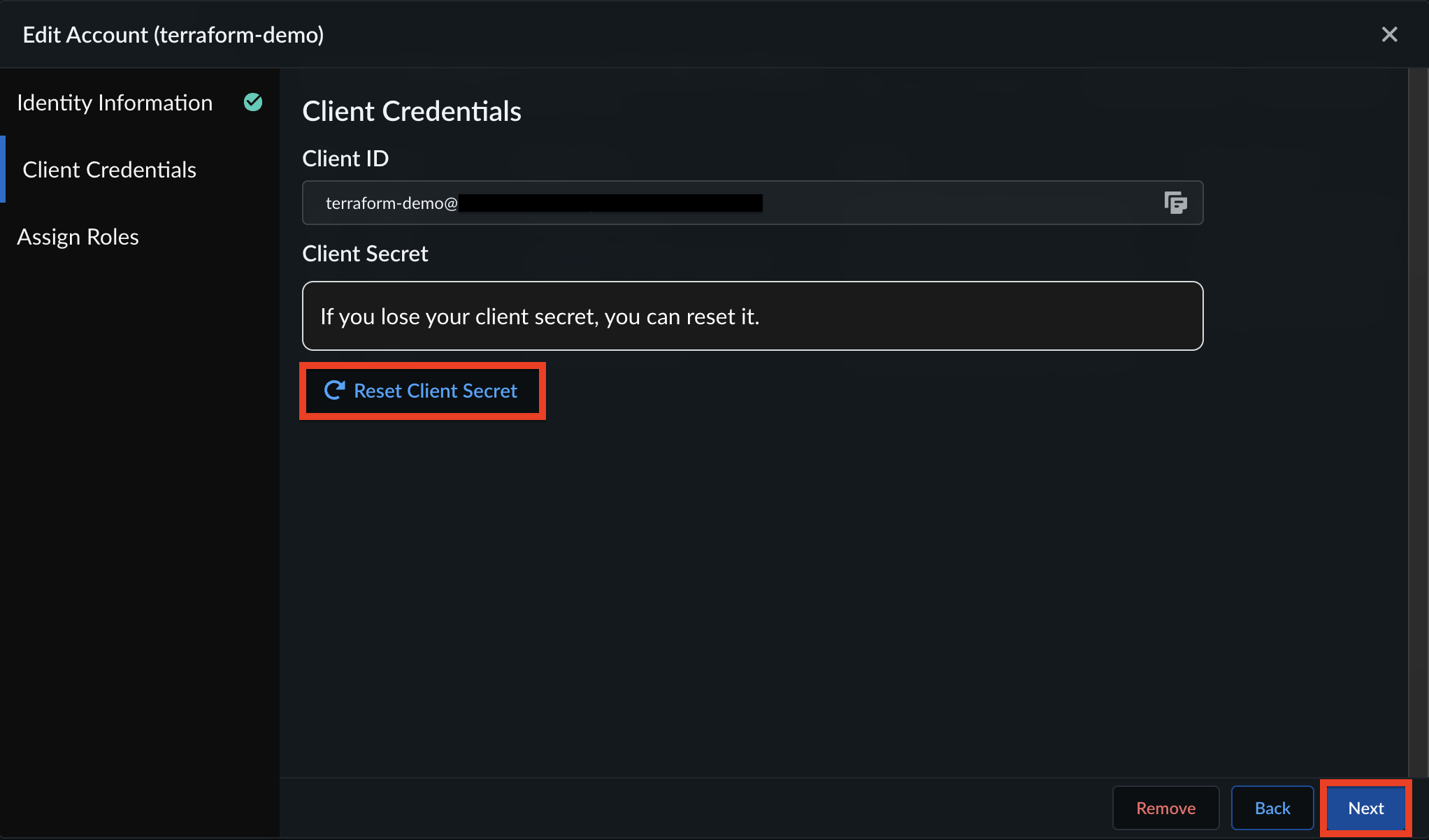
b. Select the service account associated with your Client ID. Then, click Next.
c. Click Reset Client Secret. Then, download and save the Client Credentials. Click Next.
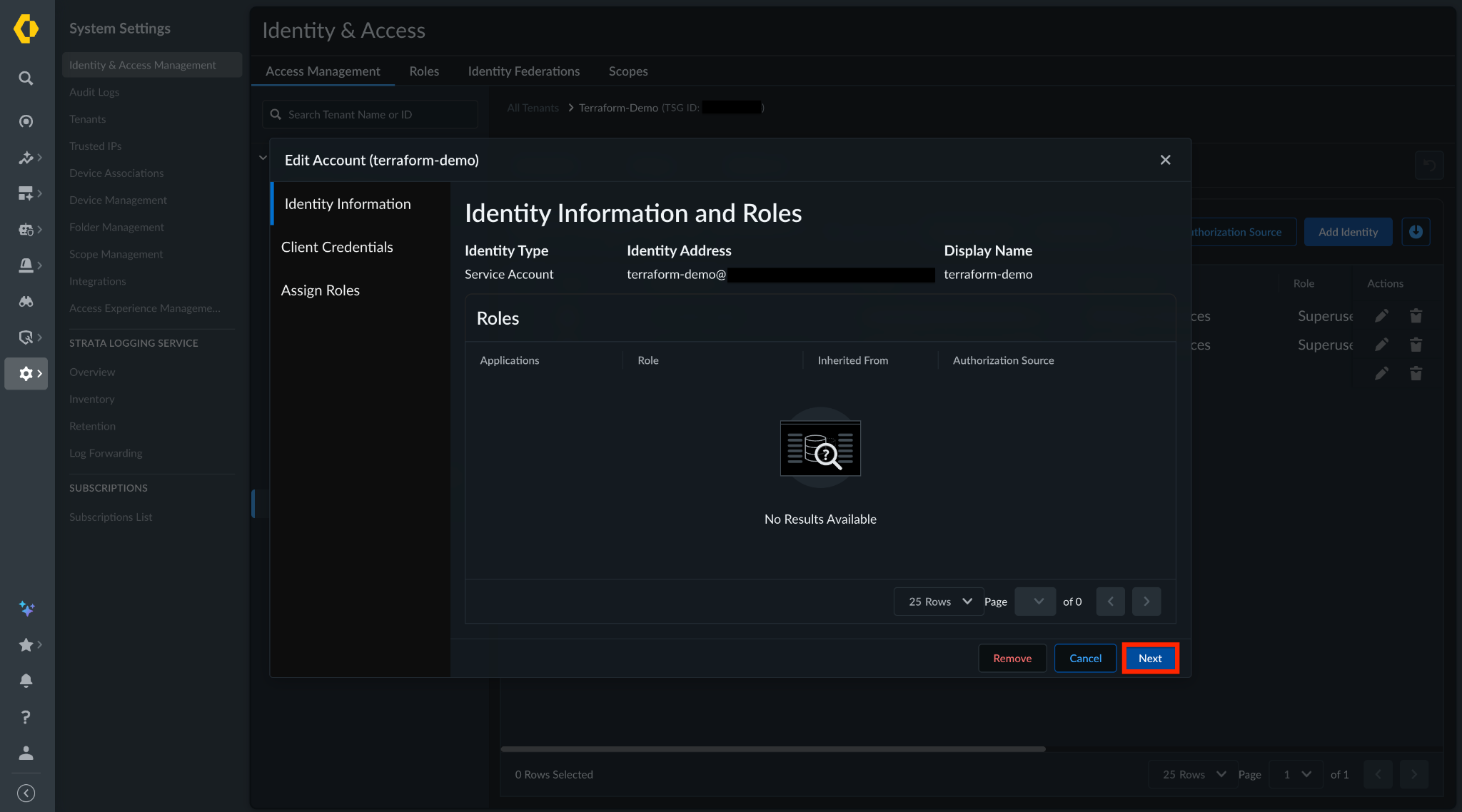
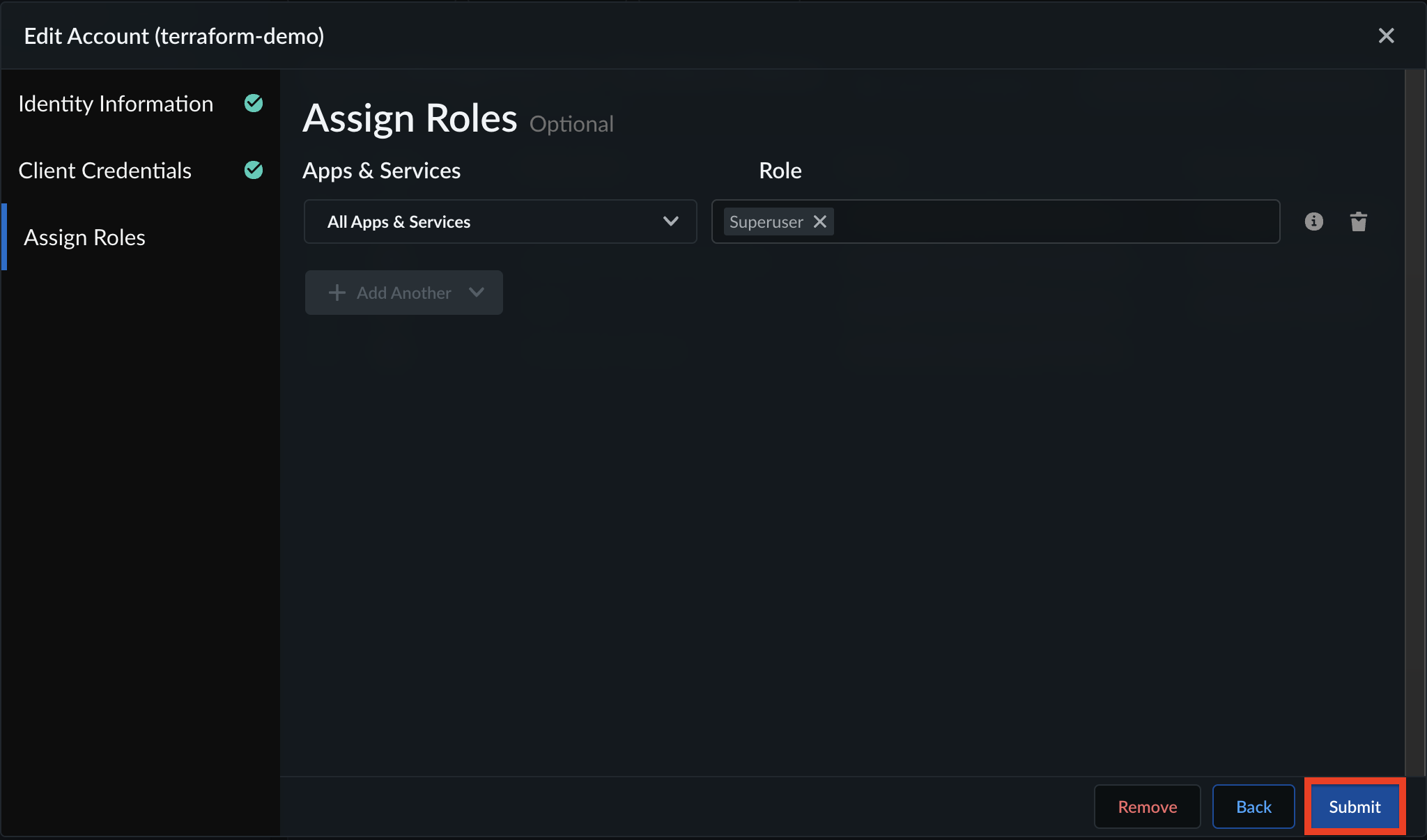
d. Click Submit.
e. Confirm the new credentials work by re-running the curl test from Step 1.
f. Update the credentials everywhere they are stored: Terraform variable files, your CI/CD secret store (Vault, AWS Secrets Manager, GitHub Actions secrets), and any other integrations that use the same service account.
- Check Your Provider Block: Verify your provider block contains all required authentication fields:
provider "scm" {
  host          = "api.sase.paloaltonetworks.com"
  client_id     = "<YOUR_CLIENT_ID>"
  client_secret = "<YOUR_CLIENT_SECRET>"
  scope         = "tsg_id:<YOUR_TSG_ID>"
}
-
Verify Your Scope: Confirm the scope format. The value must be exactly:
tsg_id:XXXXXXXXXX -
Check Your Local Environment: Check for environment variable conflicts. If Strata Cloud Manager Client ID or similar variables are set in your shell, they may silently override your provider block. Unset any conflicting variables.
printenv | grep -i scm
printenv | grep -i panos
Attribute Errors
Problem
Terraform returns local validation errors such as:
- "Missing required argument"
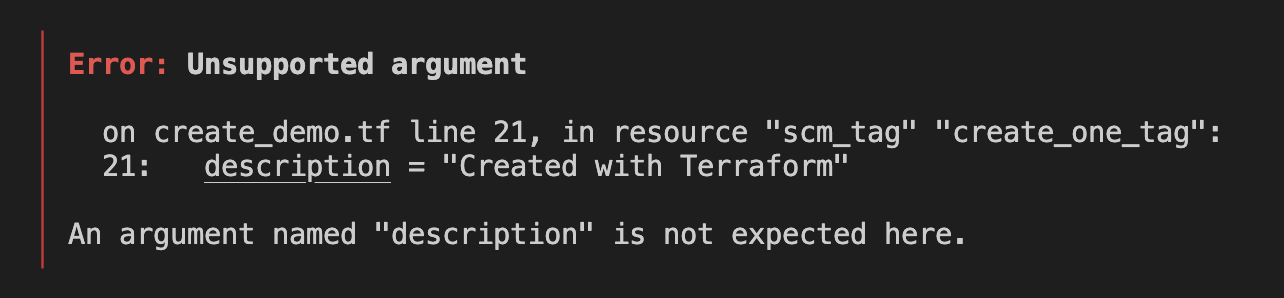
- "An argument named 'X' is not expected here"

- "Invalid value for 'X'"
These errors occur during the validation phase, before any API calls are made, and indicate a mismatch between your .tf file and the provider's schema.
Common Causes
- Missing Required Attributes: A mandatory argument (such as
folder) is missing from the resource block. - Typos in Argument Names: An attribute is misspelled or doesn't exist in the official provider schema.
- Incorrect Data Types: A value is provided in the wrong format, such as providing a plain string when Terraform expects a list (for example, using
"10.0.0.1"instead of["10.0.0.1"]). - Conflicting Arguments: You defined two attributes in the same resource block that can't be used together (for example, trying to define both a dynamic IP and a static IP in the same interface configuration).
- Outdated Provider Version: Your local environment is using an older version of the provider that doesn't yet recognize a newly released attribute.
Step-by-Step Resolution
- Run a Local Validation Check: Catch syntax and schema errors early by running
terraform validate. This command checks your.tffiles for structural validity and points out exactly which lines contain unrecognized arguments. - Verify Against the Official Schema: Compare your failing resource block(s) against the Official Strata Cloud Manager Terraform Provider Documentation. Confirm all required attributes are present, data types are correct (for example, lists versus strings), and your spelling matches the documented examples exactly.

- Check Your Provider Version: If you are trying to use a newly released attribute, your local provider version might be outdated. Run
terraform versionto check your current setup, then compare it against the Strata Cloud Manager Terraform Registry to ensure that specific attribute is supported in your installed version.
Invalid Scope Errors
Problem
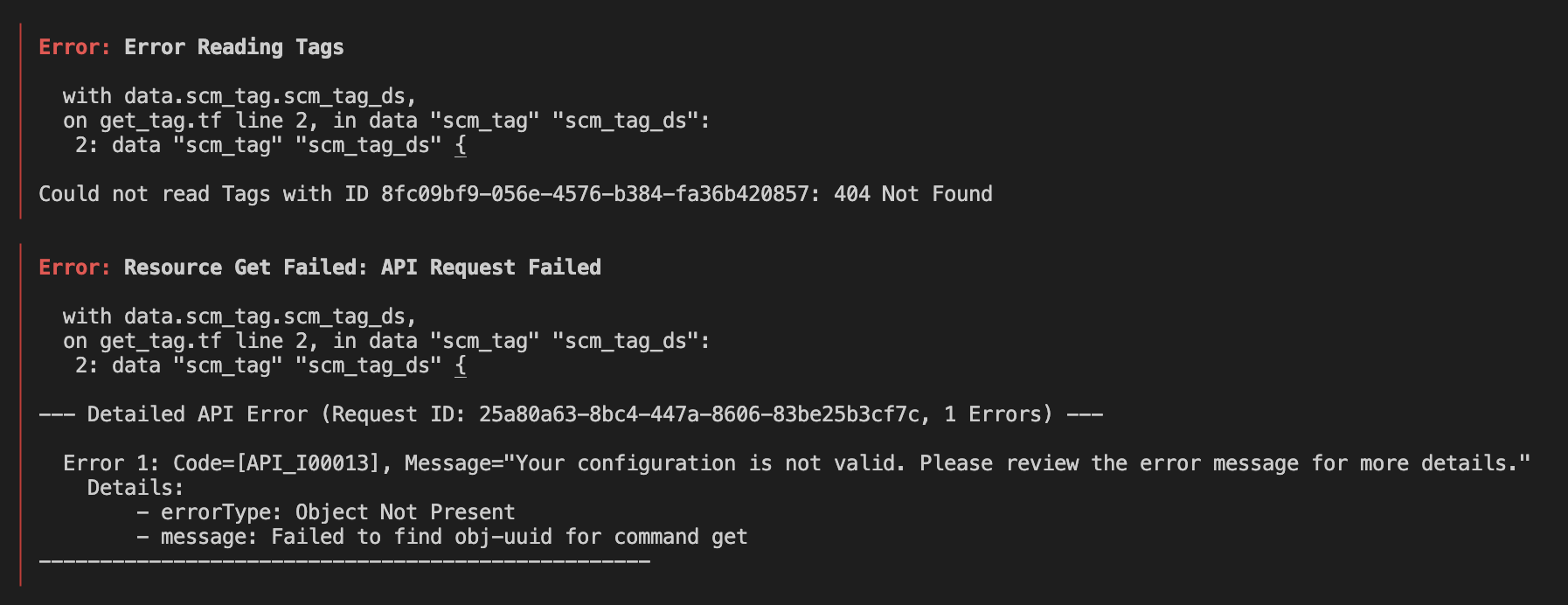
Terraform fails during plan or apply with errors such as:
- "SCM Resource Creation Failed: API Request Failed"
- "Resource Listing Failed: API Request Failed"
- "Resource Get Failed: API Request Failed"
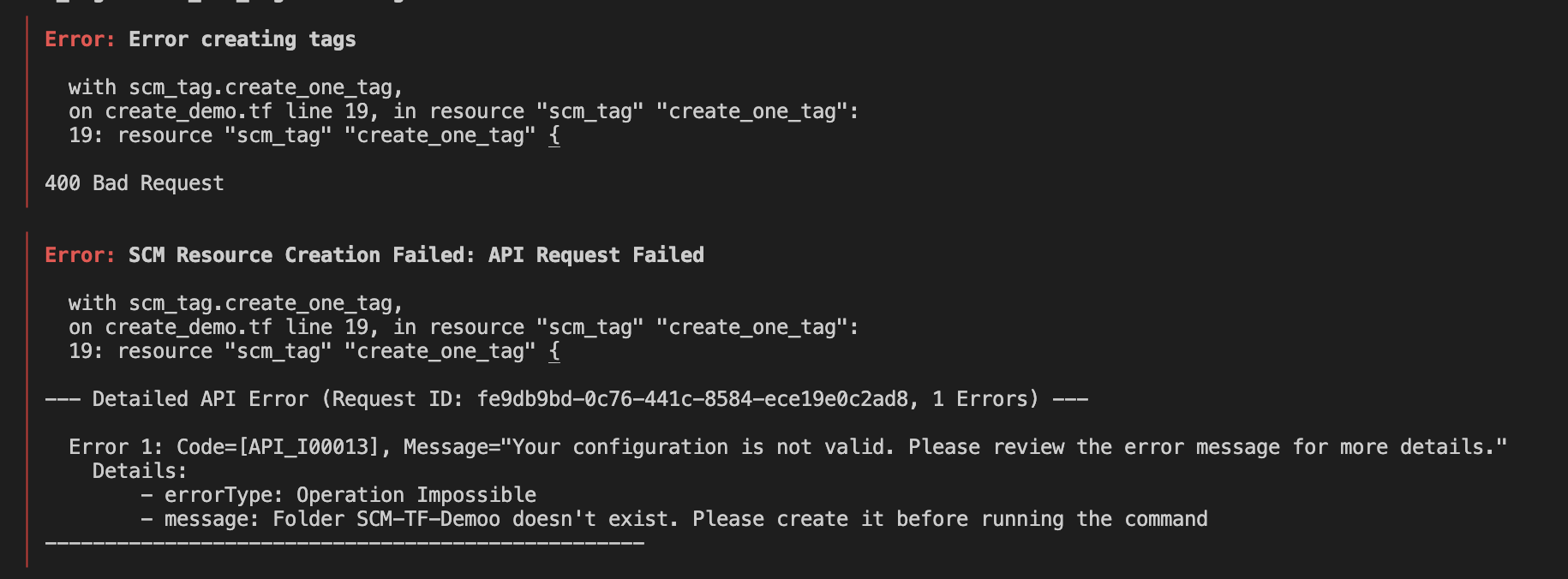
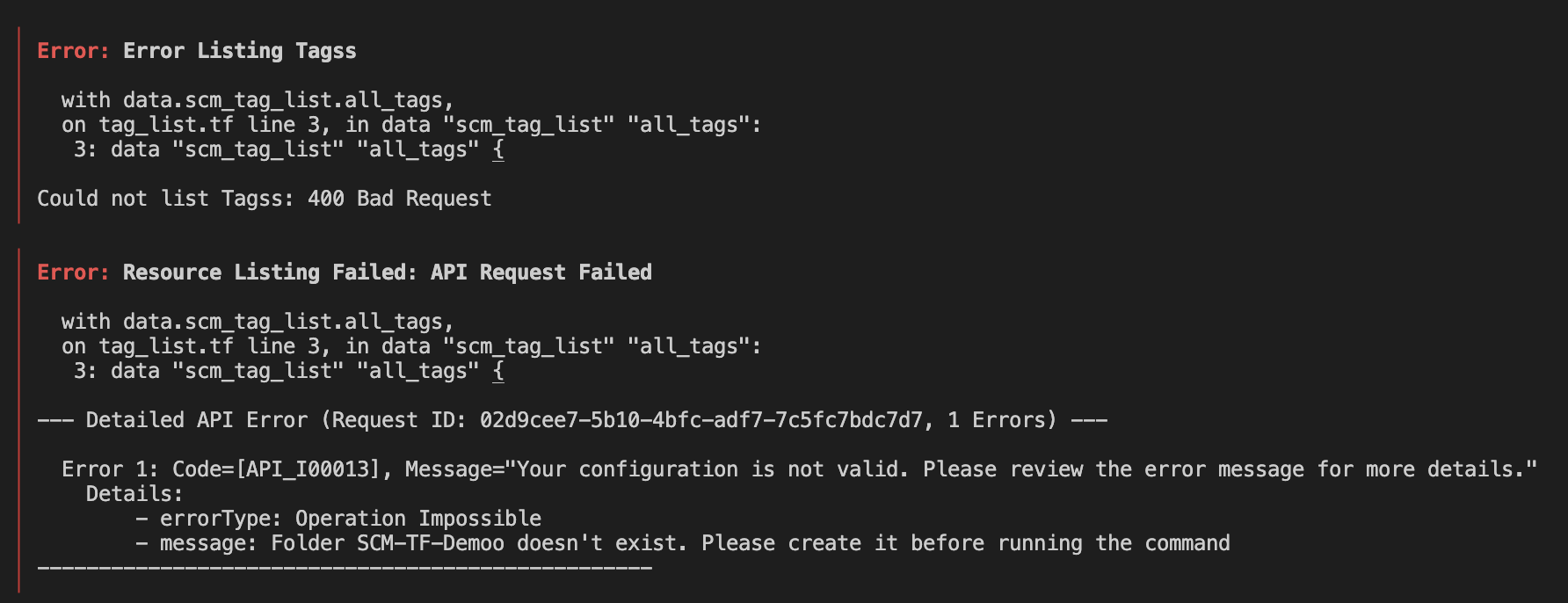
These errors mean the object was never present in Strata Cloud Manager to begin with, or the name in your configuration doesn't match what exists.
Common Causes
- Scope Typos: The folder, snippet, or device name in your configuration doesn't exactly match what is defined in Strata Cloud Manager.
- Wrong Data Source Scope: A data source is querying the wrong location (for example, looking in "Global" for an object that lives in a specific snippet) or referencing the wrong ID (for example, a UUID belonging to a different object, or a typo in the UUID).
- Object Doesn't Exist: The object was never created in Strata Cloud Manager to begin with.
- Missing Dependencies: A required parent resource—such as a folder—hasn't been created in Strata Cloud Manager yet.
- Insufficient Permissions: The service account running Terraform lacks the necessary Role-Based Access Control (RBAC) permissions for the area where the resource is defined.
Step-by-Step Resolution
- Verify Exact Names and Scopes: Identify the missing item from the error message. If the error is caused by an object name, go to the appropriate section (such as Folders or Address Objects) to locate it. If the error is caused by a UUID ID, use the API to verify it. Ensure the value exists and matches your Terraform configuration exactly, including capitalization and spacing.
- Create the Object if It Doesn't Exist: If the object isn't present in Strata Cloud Manager, define it in your Terraform configuration and apply. If the missing object is a parent resource (such as a folder), ensure it is either:
- Already created in Strata Cloud Manager, or
- Defined in your configuration and properly referenced by dependent resources with implicit references. This ensures Terraform creates resources in the correct order.
# Creating a New Folder
resource "scm_folder" "scm_new_folder" {
  name        = var.folder_name
  parent      = var.parent_folder_name
  description = var.default_description
}

# Creating a Tag
resource "scm_tag" "scm_test_tag" {
  name     = "Test-Tag"
  color    = "Blue"
  comments = var.default_description
  folder   = scm_folder.scm_new_folder.name

  depends_on  = [ scm_folder.scm_new_folder ]
}
- Verify Permissions: Confirm that the service account running Terraform has the required RBAC permissions for the relevant scope.
State Mismatch: Duplicate Resource
Problem
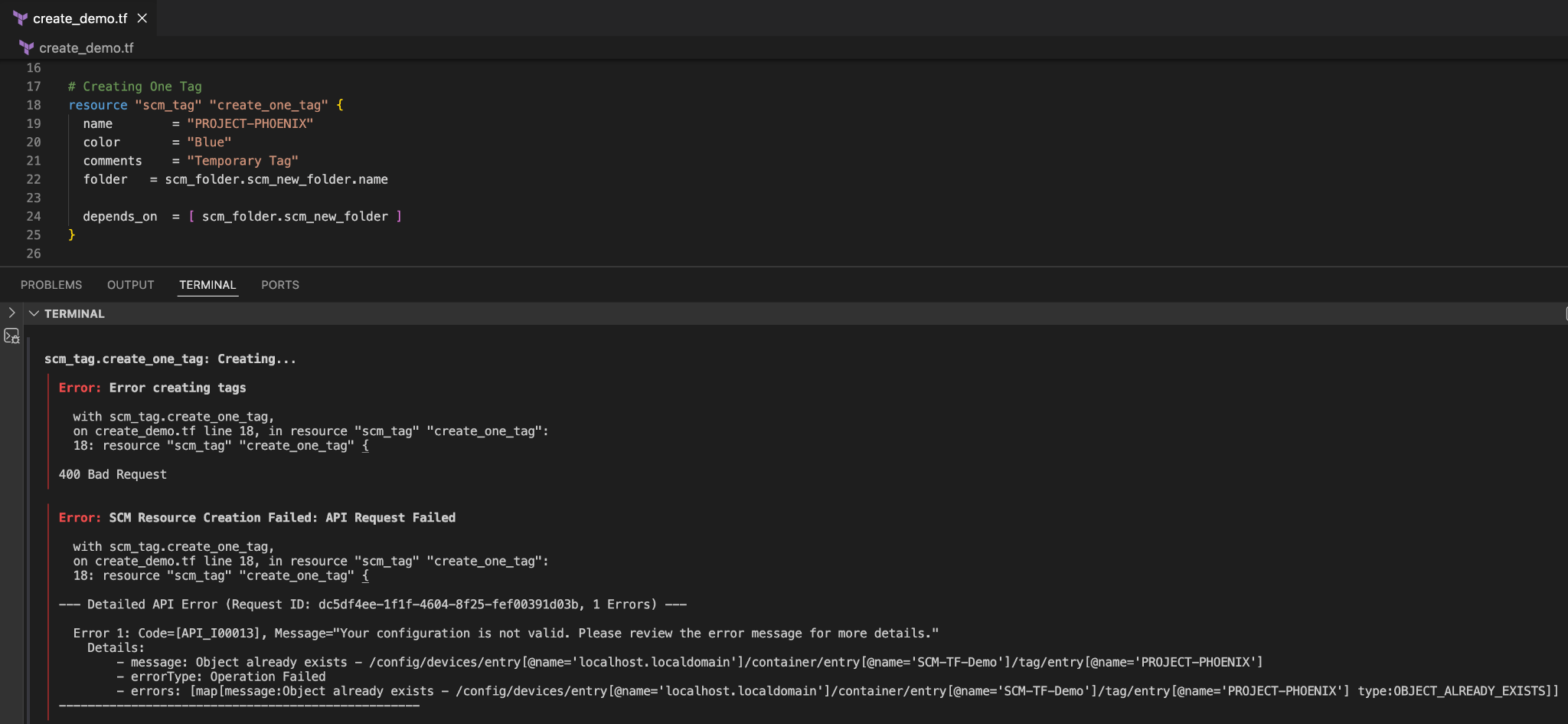
This issue occurs when Terraform's state file no longer matches the actual state of resources in Strata Cloud Manager. Terraform reports the resource doesn't exist and needs to be created, but the Strata Cloud Manager API rejects the creation because an object with that name already exists.
Common Causes
- A teammate created the same resource manually in the Strata Cloud Manager web interface after the Terraform state was last updated.
- A previous apply partially succeeded and left a resource behind without updating the state file.
Step-by-Step Resolution
-
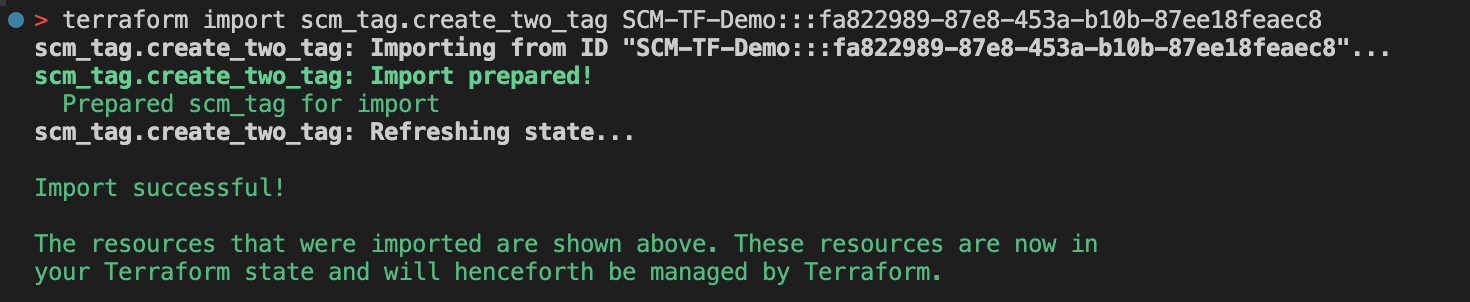
Import Resource: Import the existing object into your Terraform state.
a. Retrieve the Object ID. For detailed, step-by-step instructions for retrieving the Object ID, refer to the Import Strata Cloud Manager Snippets to Terraform guide.
b. Execute Import Command: Run
terraform import [Resource Type].[Resource Name] [Scope Name]:::[ID of Object]to pull the existing object into your state. -
Preview the Changes and Provision: Run
terraform plan. Terraform now recognizes the object exists and either reports:- No Changes: Your Terraform code already matches what exists.
- Differences Shown: Your
.tffile and the real Strata Cloud Manager object aren't aligned.
If differences appear, update your .tf file so it matches the actual resource, then run terraform apply to ensure Terraform fully manages it going forward.
State Mismatch: Resource Not Found
Problem
This issue occurs when Terraform's state file no longer matches the actual state of resources in Strata Cloud Manager. In this scenario, Terraform is destroying and recreating resources that already exist in the Strata Cloud Manager web interface, or it shows resources as existing that have already been deleted.
Common Causes
- A teammate deleted a resource directly in the Strata Cloud Manager web interface after the Terraform state was last updated.
- A Terraform process was killed (for example, SIGKILL, lost connection to a remote state backend) after the Strata Cloud Manager API call succeeded but before the state write completed.
Note: A normal failed apply doesn't cause this—Terraform writes state incrementally as each resource succeeds, so successfully created resources are always recorded even when the overall apply fails.
Step-by-Step Resolution
- Identify the Drift: Inspect what Terraform currently has recorded by running
terraform show. Look for resources whose attributes no longer match what you see in the Strata Cloud Manager web interface, or resources that appear in state but no longer exist. - Reconcile State: Reconcile state with reality using
terraform apply -refresh-only. This polls the Strata Cloud Manager API for the current status of all managed resources and updates the state file without making any infrastructure changes. Review the proposed state changes before confirming. - Preview the Changes: Re-run
terraform planto check whether the drift is resolved. - Remove Resource from State: If a resource was deleted in the Strata Cloud Manager web interface but still exists in state, remove the item by running
terraform state rm [Resource Type].[Resource Name]. - Import Resource If Needed: If a resource exists in the Strata Cloud Manager web interface but is missing from state entirely, import it into state instead of letting Terraform recreate it:
terraform import scm_address.example <resource-id>